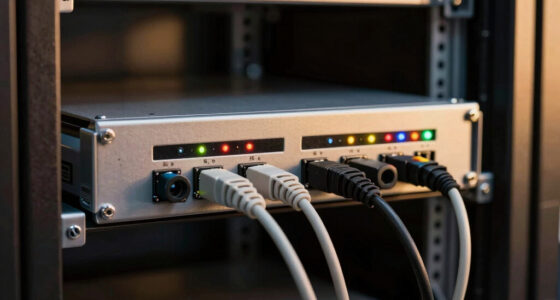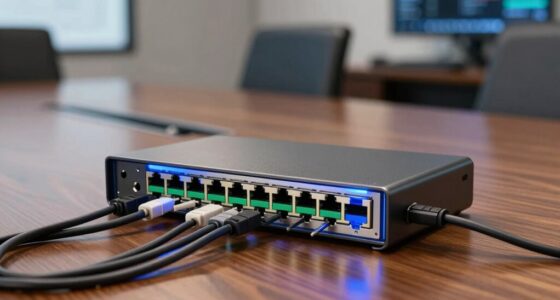

This checklist is for people planning backup and power for cloud, hosting, and infrastructure environments. It covers the hardware categories named here, from rack power protection to network connectivity and fiber patching.

Get business pricing on networking and server gear
- Business-only prices and quantity discounts
- Tax-exempt purchasing
- Multiple users, one account, clear invoices
The sections follow a practical sequence: power continuity and distribution, data backup, network expansion, console access, and fiber connections. Each one pairs a named pick with selection guidance for checking fit and compatibility.
Use the checklist to compare each pick with your rack, connected equipment, and existing infrastructure. Confirm the relevant requirements before ordering, and treat system compatibility as a prerequisite to adding any item.
Rackmount UPS
A rackmount UPS is a core part of a power continuity plan because it is intended to sit alongside equipment that depends on power. The named pick is the APC 3000VA Lithium Ion UPS SMTL3000RM2UC Rackmount Pure Sine Wave 120V. Before choosing a UPS, map the equipment it needs to support and confirm that its electrical requirements and connections align with your installation. Load planning helps keep the selection grounded in the actual devices you intend to connect.
A common mistake is choosing from a headline capacity alone without accounting for the full connected load, rack space, or the site’s power setup. Check the available mounting space, the equipment’s input requirements, and how the UPS will connect to the infrastructure around it. Confirm that the stated voltage is appropriate for your environment, and make sure the rack and installation plan accommodate the unit. Fit and compatibility matter as much as the product category. Verify those details against the equipment documentation before you settle on a pick.
What to look for:
- Confirm the connected equipment’s electrical requirements.
- Check the rack’s available mounting space.
- Match the stated 120V to the installation.
- Plan which devices the UPS will support.
- Verify connection needs across the power setup.
APC 3000VA Lithium Ion UPS SMTL3000RM2UC Rackmount Pure Sine Wave 120V
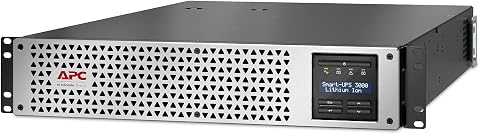
The APC SMTL3000RM2UC is a 3000VA/2700W lithium-ion UPS designed for network and server protection. It features a pure sine wave output, smart remote management via SmartConnect, and hot-swappable batteries for reliable backup and efficient operation.
Pros:
- High capacity with pure sine wave output for sensitive equipment
- Remote management via SmartConnect with automatic notifications
- Hot-swappable lithium-ion battery for easy replacement
- Energy-efficient with Green Mode and AVR
Cons:
- Complex setup with many features may require technical knowledge
- Limited to 120V power supply, not suitable for 240V regions
Best for: Rack installations that need a planned UPS selection
Not ideal for: Setups that have not confirmed load or electrical compatibility
Bottom line: Confirm the connected load, rack fit, and electrical requirements before selecting this rackmount UPS.
PDU with Metering
A PDU is the point where rack power is distributed to connected equipment, so choosing the right one means understanding both the rack and the devices it will serve. The named pick is the CyberPower PDU41001 Switched PDU, 8 Outlets, 1U Rackmount. Its name identifies an eight-outlet, 1U rackmount unit; compare those stated details with your outlet plan and available rack space. Outlet planning can prevent a mismatch between the PDU and the equipment you intend to connect.
A frequent buying mistake is focusing on outlet count while overlooking plug types, electrical requirements, mounting orientation, or how the unit fits into the rack layout. Inventory the devices first, then confirm their connections and power needs against the PDU documentation and your site setup. Check whether the rack has the intended 1U of space and whether the PDU’s mounting arrangement suits the installation. The product name includes “Switched”; confirm that its functions fit your operating approach rather than assuming they match your needs. Documented compatibility is the useful final check before purchase.
What to look for:
- Count the devices and outlets in your plan.
- Confirm plug types and electrical requirements.
- Check that 1U fits the rack layout.
- Verify the mounting arrangement for your rack.
- Review the product documentation for required functions.
CyberPower PDU41001 Switched PDU, 8 Outlets, 1U Rackmount

The CyberPower PDU41001 is a 1U rackmount switched power distribution unit delivering 120V/15A (derated to 12A) power to 8 switchable NEMA 5-15R outlets from a single NEMA 5-15P plug. Outlets can be controlled individually or collectively over the network via an RJ45 Ethernet port and web browser, or locally through the LCD controls.
Pros:
- Individual remote control of each outlet via network or local LCD
- Multifunction LCD displays amperage, voltage, kW, and IP address
- Automatic event notifications via email, SMS, or SNMP traps
- Durable metal housing with upgradeable firmware and 3-year warranty
Cons:
- 12A derated limit may be restrictive for high-load racks
- Switch-free design requires LCD/console navigation to change settings locally
Best for: Racks where an eight-outlet, 1U PDU suits the layout
Not ideal for: Installations that have not checked plugs, load, or rack fit
Bottom line: Match the outlet plan, electrical needs, and rack space before choosing this PDU.
NAS Backup Drives
A NAS can be part of a backup plan, but the right selection depends on how your environment will connect to and use it. The named pick is the BUFFALO TeraStation Essentials 2025 4-Bay Desktop NAS with 32TB Hard D. The product name gives a four-bay desktop NAS and a stated 32TB capacity; use your backup requirements to assess whether that configuration is appropriate. Backup planning starts with the data you need to protect and how you expect to access it.
A common mistake is treating the capacity in a product name as a complete answer to storage needs. Consider the amount of data, its expected growth, the intended backup workflow, and how the NAS will connect to your network and other systems. Confirm the exact product configuration and included components with the product documentation, particularly because the supplied name ends with “Hard D.” Check desktop placement, connectivity, and whether the operating environment supports your planned use. Workflow compatibility deserves attention alongside capacity: a storage device only fits the plan when its connections and intended role align with the rest of the setup.
What to look for:
- Estimate the data the backup plan must cover.
- Account for expected data growth.
- Confirm the exact configuration and included components.
- Check network and system compatibility.
- Verify that desktop placement suits the installation.
BUFFALO TeraStation Essentials 2025 4-Bay Desktop NAS with 32TB Hard Drives
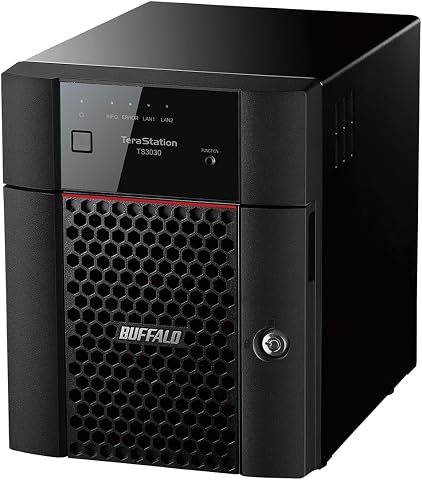
The BUFFALO TeraStation Essentials 2025 is a 4-bay desktop NAS designed for affordable, professional-grade data storage, sharing, and backup. It features hardware encryption, flexible RAID configurations, and cloud integration, with hard drives included for easy setup.
Pros:
- Affordable, professional-grade NAS with included hard drives
- Flexible RAID options for redundancy and performance
- Fast data transfer with 2.5GbE port
- Cloud integration with major providers
Cons:
- Limited to RAID configurations without additional customization
- No mention of advanced features like hot-swappable drives
- Requires network setup for optimal use
Best for: Desktop NAS planning where the named configuration fits
Not ideal for: Needs that exceed the confirmed capacity or configuration
Bottom line: Check the exact configuration, backup workflow, and connectivity before selecting this NAS.
10GbE Network Card
A network card is a compatibility decision as much as a connectivity choice: it must fit the host system and support the network plan. The named pick is the QNAP QXG-10G2T-X710 Two Port 10GbE Network Card with SR-IOV and iSCSI. Its name identifies two ports and 10GbE, along with SR-IOV and iSCSI. Host compatibility should be the first check, including the system’s available expansion slot and supported configuration.
A common mistake is choosing a card based on the network speed named in its title without verifying the full path. Confirm that the host, operating environment, network equipment, cabling, and intended applications support the planned connection. Check the card’s physical fit and any required software or configuration against the product documentation. If SR-IOV or iSCSI is part of the intended use, verify that the surrounding systems support the relevant features rather than assuming the card alone is sufficient. End-to-end compatibility helps prevent a component choice that does not match the actual network design.
What to look for:
- Confirm the host system supports the card.
- Check the available expansion slot and physical fit.
- Verify network equipment supports the intended connection.
- Confirm cabling suits the network plan.
- Check SR-IOV and iSCSI support across the setup.
QNAP QXG-10G2T-X710 Two Port 10GbE Network Card with SR-IOV and iSCSI

The QNAP QXG-10G2T-X710 is a dual-port PCIe Gen 3 network expansion card featuring Intel’s X710 Ethernet Controller. It supports multiple speeds up to 10Gbps per port, with port trunking for up to 20Gbps transfer speeds, and is optimized for virtualization and data center applications.
Pros:
- Supports high-speed 10GbE networking with port trunking for increased transfer rates
- Compatible with multiple operating systems including QNAP, Windows, and Linux
- Ideal for virtualization and data-intensive applications
Cons:
- Requires PCIe x4 slot, which may not be available in all systems
- No included low-profile bracket for compact cases
- Limited customer reviews for long-term reliability
Best for: Hosts and networks confirmed to support the card’s named features
Not ideal for: Systems without a verified slot or end-to-end compatibility
Bottom line: Check host fit, network support, and feature compatibility before adding this card.
Rackmount KVM Console
A rackmount KVM console can bring console access into a rack-based setup, so the choice should match the devices and connections you plan to manage. The named pick is the Tripp Lite NetDirector 8-Port Rackmount Console HDMI KVM Switch with 1. The product name identifies an eight-port rackmount console and HDMI KVM switch; confirm the complete product details because the supplied name ends with “with 1.” Connection mapping is a useful first step before comparing it with your equipment.
A common mistake is treating port count as the only compatibility check. List the systems you need to access, identify their video and control connections, and compare those requirements with the console’s documented connections and included accessories. Check available rack space, mounting needs, and the layout of the equipment you want to reach. Verify the exact model and complete product configuration before ordering, and confirm that the intended systems can be managed through the stated HDMI connection. System-by-system fit keeps the console choice aligned with the actual rack rather than just a target number of ports.
What to look for:
- List the systems that need console access.
- Confirm video and control connections for each system.
- Check the complete model and included accessories.
- Verify rack space and mounting fit.
- Compare the port plan with the devices to manage.
Tripp Lite NetDirector 8-Port Rackmount Console HDMI KVM Switch with 17" LCD, IP

The Tripp Lite NetDirector B030-008-17-IP is a compact 1U rack‑mountable KVM console that combines an eight‑port HDMI switch, a 17‑inch full‑HD LCD, keyboard and touchpad. Built‑in IP remote access lets you manage up to eight servers from anywhere via LAN or Internet, supporting up to 64 authorized users and 32 concurrent remote sessions.
Pros:
- IP remote access enables management from any location over LAN or Internet.
- Compact 1U dual‑rail design saves rack space while keeping the monitor visible.
- High‑resolution 17" LCD provides clear on‑screen display up to 1080p.
- Supports up to 64 authorized users with multi‑level password security.
Cons:
- Heavy at 26 lb, which may be cumbersome for some rack installations.
- Requires separate KVM cable kits (sold separately) for USB/HDMI connections.
Best for: Racks with up to eight planned KVM connections that match the console
Not ideal for: Systems whose connections or mounting needs are unconfirmed
Bottom line: Verify the complete model, connections, and rack fit against every system you plan to manage.
Fiber Optic Patch Cables
Fiber patching depends on matching the cable ends to the equipment and panels at both sides of each connection. The supplied pick is “Fiber Optic Patch Panel – DIN Rail or Wall Mount with ST, SC, and LC S.” Its name refers to a patch panel and lists DIN rail or wall mounting, plus ST, SC, and LC connector types; confirm the exact product and whether it is the intended item for this checklist slot. Connector matching is essential before selecting fiber components.
A common mistake is ordering by a familiar connector name without checking both ends, fiber type, length, routing, or the interfaces on connected equipment. Inventory the connection points and document the connector type at each end. Confirm the mounting option fits the installation and that cable length supports the route without creating avoidable strain or excess slack. The supplied product name ends with “S,” so check its complete description and configuration before purchase. End-to-end verification helps ensure the selected patching components fit the link and the mounting plan.
What to look for:
- Record connector types at both ends of each link.
- Confirm the required fiber type and cable length.
- Check that mounting suits the installation.
- Verify interfaces on connected equipment and panels.
- Confirm the complete product description and configuration.
Fiber Optic Patch Panel – DIN Rail or Wall Mount with ST, SC, and LC Single-Mode

The SlimLine fiber patch panel provides a compact solution for fiber cable patching and splicing on either a wall or DIN rail. It features a durable powder‑coated steel enclosure and includes three 12‑fiber single‑mode LGX style adapter plates (ST, SC, LC) plus a splice holder and all mounting hardware.
Pros:
- Sturdy powder‑coated steel construction for durability
- Versatile mounting options – can be installed on a DIN rail or wall
- Includes three different single‑mode adapter plates (ST, SC, LC) and splice holder
- Compact footprint suitable for space‑constrained installations
Cons:
- Limited to 12 fibers per adapter plate, which may not meet higher‑capacity needs
- Additional connector types require separate purchase of compatible LGX adapters
Best for: Installations whose connector and mounting needs match the listed options
Not ideal for: Links with unverified fiber type, connector, or product configuration
Bottom line: Confirm the full product details and match every connector and route before ordering.
Work through the look-for points with your equipment list and product documentation, and verify exact configurations where a name is incomplete. A little checking around load, fit, connectors, and compatibility makes the final checklist more useful. Build with confidence, one confirmed connection at a time.