

To set up automatic reboots after critical patches smoothly, use your operating system’s built-in tools like Windows Update for Business or Linux’s cron jobs and systemd timers. Schedule reboots during off-peak hours, and apply policies to force reboots after updates with minimal disruption. Automating these steps helps guarantee patches are fully applied without chaos. If you keep exploring, you’ll discover how to fine-tune these processes for seamless system management.

Get business pricing on networking and server gear
- Business-only prices and quantity discounts
- Tax-exempt purchasing
- Multiple users, one account, clear invoices
Key Takeaways
- Configure automated update settings to include scheduled reboots during off-peak hours using system tools or enterprise management solutions.
- Define clear maintenance windows to ensure reboots occur at predictable, low-traffic times, minimizing operational disruption.
- Implement policies that automatically reboot systems post-update, with delays to allow users to save work if needed.
- Monitor update and reboot logs regularly to verify successful application and address any issues promptly.
- Use automation tools to schedule and enforce reboots, reducing manual intervention and ensuring consistent patch activation.
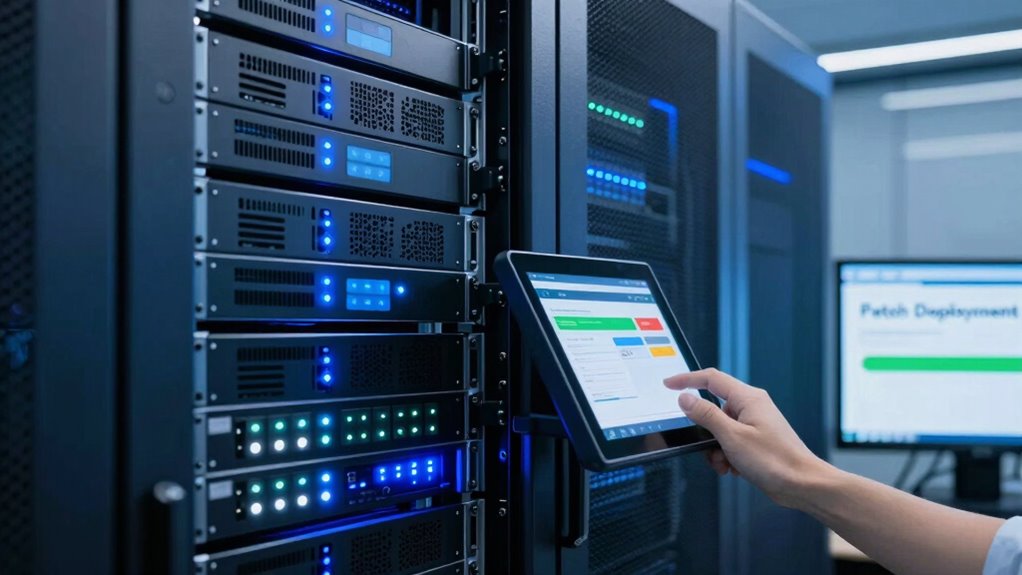
Applying critical patches is essential for maintaining your system’s security and performance, but sometimes these updates require a reboot to fully take effect. Managing this process smoothly falls under effective patch management, which involves not just applying updates but also ensuring they activate without disrupting your workflow. Reboot scheduling becomes a vital part of this, allowing you to automate restarts at times that minimize downtime.
Effective patch management includes automating reboots to ensure security updates activate smoothly with minimal disruption.
To set up automatic reboots after critical patches without chaos, start by reviewing your system’s update policies. Many operating systems and enterprise management tools allow you to configure how updates are applied and when reboots happen. For example, Windows offers Group Policy settings and Windows Update for Business, enabling you to specify maintenance windows during off-hours. This way, your system can automatically reboot after patch installation, but only at times you’ve designated as least disruptive. Similarly, Linux distributions often have cron jobs or systemd timers that you can configure to trigger reboots after updates. Additionally, understanding the role of reboot scheduling can help you better plan and coordinate these updates. Incorporating automation tools can further streamline this process, and many enterprise patch management solutions include features that automatically handle patch deployment and rebooting. These tools often allow you to define policies for rebooting, such as forcing reboots after a certain delay or only during designated hours. Implementing such policies ensures that critical patches are fully applied without manual intervention, reducing the risk of security gaps or performance issues.
Monitoring is another crucial aspect. Once you’ve set up automated reboot schedules, keep an eye on the system’s update logs and health status. This helps you verify that reboots occur as planned and that patches are successfully applied. If issues arise, having a clear audit trail can help you troubleshoot effectively.
Windows Server automatic reboot management
As an affiliate, we earn on qualifying purchases.
As an affiliate, we earn on qualifying purchases.
Frequently Asked Questions
Can I Schedule Reboots During Specific Hours?
Yes, you can schedule reboots during specific hours using maintenance windows and reboot scheduling. First, set up maintenance windows on your system to define the preferred reboot times. Then, configure reboot scheduling within those windows, ensuring reboots happen automatically at ideal times. This approach minimizes disruption, allowing you to control when reboots occur, especially after critical patches, and keeps your systems running smoothly without unexpected downtime.
How Do I Prevent Data Loss During Reboots?
Imagine your data as precious cargo on a ship heading into stormy seas. To prevent loss during reboots, you must safeguard this cargo with data backup before scheduling reboots. Reboot scheduling ensures you’re not caught off guard by sudden waves. Regularly backing up your data is like anchoring your ship, providing safety and peace of mind. Trust in a solid backup plan and well-timed reboots to keep your data safe.
What Are Best Practices for Testing Patch Reboots?
To test patch reboots effectively, prioritize patch validation by deploying updates in a controlled environment first. Monitor system behavior and performance to identify issues early. Keep users informed with clear notifications about upcoming reboots, so they can save work and prepare. After testing, review logs and feedback, then gradually roll out patches to production. This approach minimizes disruptions and guarantees patches work smoothly without causing chaos.
How to Handle Reboots on Clustered Systems?
You should coordinate reboots on clustered systems by establishing clear reboot policies that specify which node reboots first, maintaining cluster availability. Use cluster management tools to automate cluster coordination, ensuring only one node reboots at a time. Communicate your reboot schedule to all stakeholders, and test your policies regularly. This approach minimizes downtime, prevents split-brain scenarios, and keeps your cluster resilient during critical updates.
Are There Risks of Automatic Reboots Causing System Instability?
Yes, automatic reboots can pose risks of system instability if you don’t manage them carefully. You might miss critical manual intervention needs or reboot notifications, leading to unresolved issues or data loss. To minimize risks, make certain you set up proper alerts, monitor system health, and schedule reboots during low-traffic periods. Regularly review your reboot process to prevent unexpected crashes or disruptions, keeping your system stable and reliable.
As an affiliate, we earn on qualifying purchases.
Conclusion
By setting up automatic reboots after critical patches, you’re turning your system into a resilient fortress, ready to withstand any digital storm. With these simple steps, you guarantee your updates install smoothly and your system stays secure without chaos or downtime. Don’t let manual reboots be your Achilles’ heel—embrace automation and keep your tech running like a well-oiled machine. Trust me, once you set this up, your system’s stability will be unstoppable!
enterprise patch management tools
As an affiliate, we earn on qualifying purchases.
As an affiliate, we earn on qualifying purchases.
system update automation software
As an affiliate, we earn on qualifying purchases.
As an affiliate, we earn on qualifying purchases.
Halloween Picks
halloween
As an affiliate, we earn on qualifying purchases.